- Published on
How to Enter a Beat Battle Using Auwen
- Authors

- Name
- Nes Croft
- @nescroft
How to Enter a Beat Battle Using Auwen
 Let the games begin
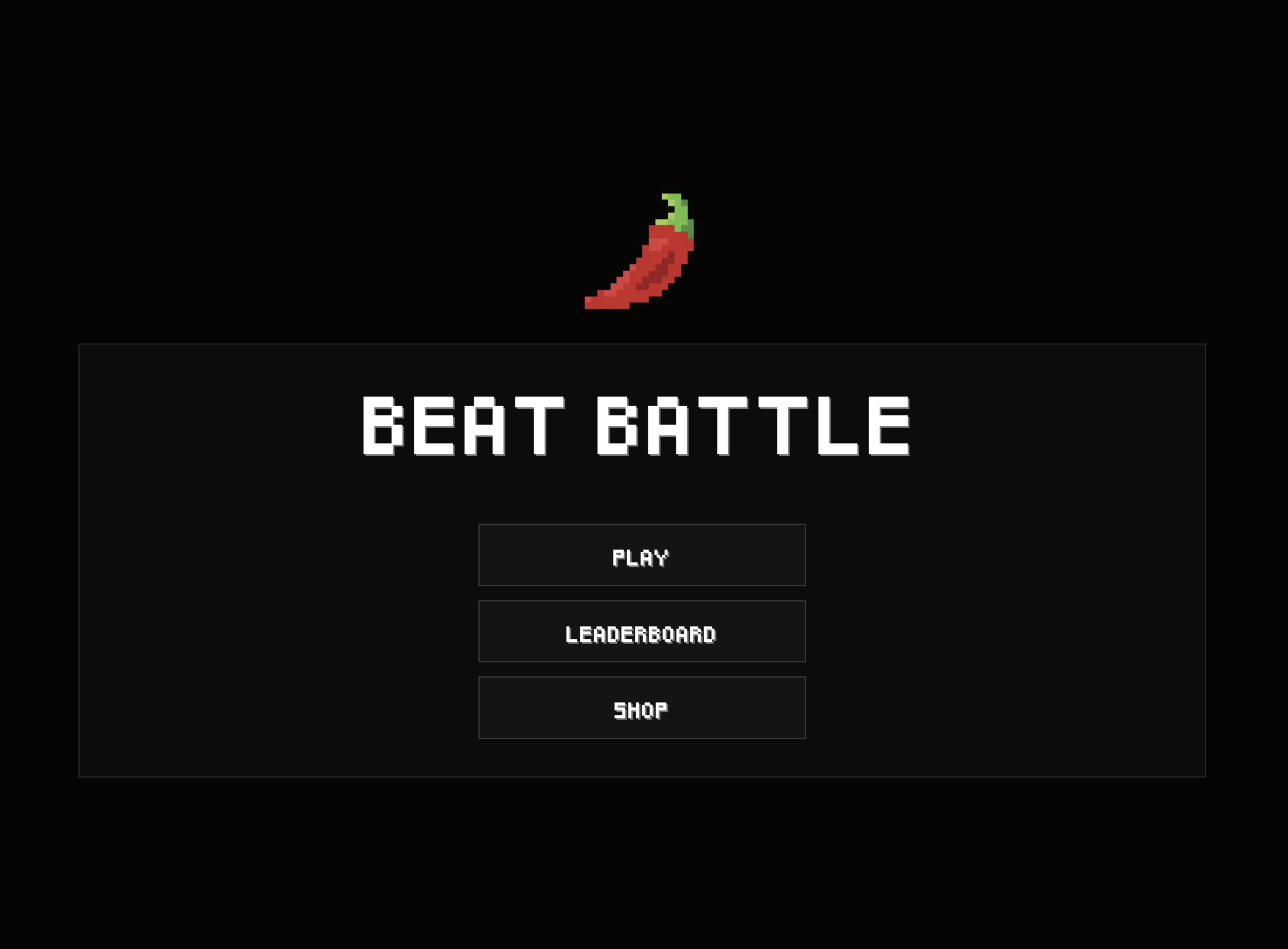
Beat-battle.net has been going viral lately as a place for producers to compete head to head, and Auwen is a great way to jump in. The site gives everyone the same sample kit and a countdown clock, then the participants vote on the best beat. This guide walks you through every step from downloading the kit to uploading your finished track before time runs out.
Step 1: Find a Server and Announce Yourself
Head to beat-battle.net and either host your own server or join an existing one. Once you pick a server, drop the server id in our Discord #beat-battles channel and tag @everyone so others can join or spectate.
Step 2: Load the Kit into Auwen
Open Auwen and point it at your downloaded kit folder:
src chooseFolder
Pick the folder that contains the kit files. Auwen will scan everything and make it searchable so you can start pulling in sounds.
Step 3: Make Your Beat
Now the fun part. Build your beat using whatever commands you like. Use the s command to load in samples from the kit, and run guide any time you want to learn more useful commands. One tip worth remembering: use the ps (precision sampler) command on some of your sounds to get longer chops out of them.
When you have about two minutes left on the clock, start recording:
rec start
When you're happy with your take, stop the recording:
rec stop
Step 4: Master and Export Your Track
Right after you stop recording, Auwen will ask if you want to create a mastered version — say yes, then pick a loudness target. Louder tracks tend to do better in votes, so something in the edm/pop/metal/hiphop range works well for most beat battle entries. Once mastering finishes, Auwen will ask if you want to save another file type — choose mp3, since beat-battle.net only accepts .mp3 uploads.
Upload the exported .mp3 before the two-minute countdown ends. Then stick around — voting is part of the experience and it's how you see what other producers did with the same exact sounds.
Note: Auwen uses ffmpeg under the hood for the
.mp3export, so make sure ffmpeg is installed on your system before you get to this step.
What's Coming Next
Down the road there may be a dedicated Beat Battle page on the Soniare site where we can run our own custom challenges and maybe even compile the best entries into little EPs.
Until then, grab your kit, set your timer, and get to work. See you on the leaderboard.